Ai Mode: More Power to You
16th September 2026
My Thoughts on Ai Mode
- In my opinion it is far better to do your designs in Figma or Lay. Instead of letting Ai do design work.
- Figma Dev Mode is the best way to create a design and have your Ai code it pixel-perfect into your website.
- Use it to create Custom Elements, Custom Views and Custom Fields
- Use it to migrate data and do the hard and boring work
- Building a complex part of a website? To save Ai usage, first finish a good prototype with HTML, JS and CSS. Then tell your Ai to put it into Lay Theme.
- Don't one-shot things and expect good results. Build step by step.
- Simple settings are usually faster to do in Lay yourself instead of tasking the Ai.
- Ai Mode is optional. Use it when a project needs something more complex or tailored.
- More earning potential: With enough expertise, you can create more professional and tailored Lay websites and ask for a higher budget for client projects.
That's what Ai Mode can help you with!
Book me to do custom work
Ai Mode lets you create more tailored websites and CMS experiences for your clients. This includes projects that previously required custom development by an experienced Frontend Developer.
Every project has its own needs. If you need personal help, you can book me for a minimum of 2 hours at 90€ per hour by emailing info@laytheme.com.
While Ai Mode does lots of programming for you, it still is custom work - done with the help of Ai, instead of only using Lay Settings. Since that is much more complex than what Lay usually offers, I cannot provide free support as usual for it.
While you need less custom dev-work, you still need more know-how
and more complex decision-making at times.
Enable Ai Mode
Go to Lay Options and enable Ai Mode!
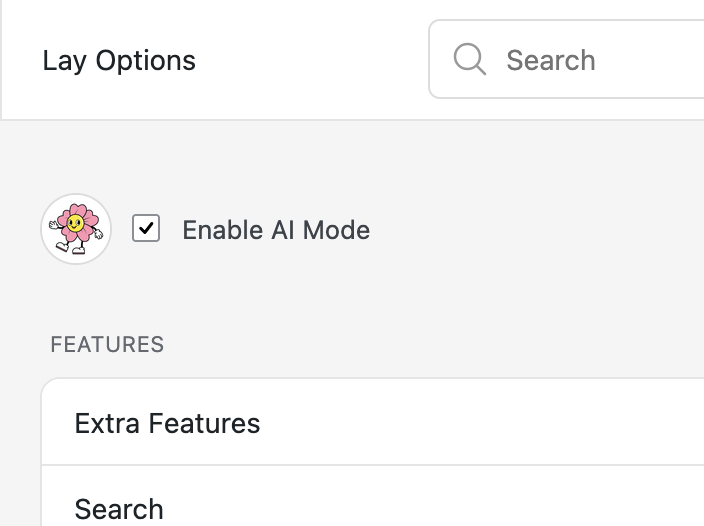
Yes, it's that easy
Connect to Claude / Codex
Use the Claude app or ChatGPT/Codex App! This won't work with the browser based ai chatbots.
Personally, I prefer ChatGPT/Codex cause for web-frontend work the built-in browser is better I think!
Go to "Ai Mode" and press the black button "Create direct connection".
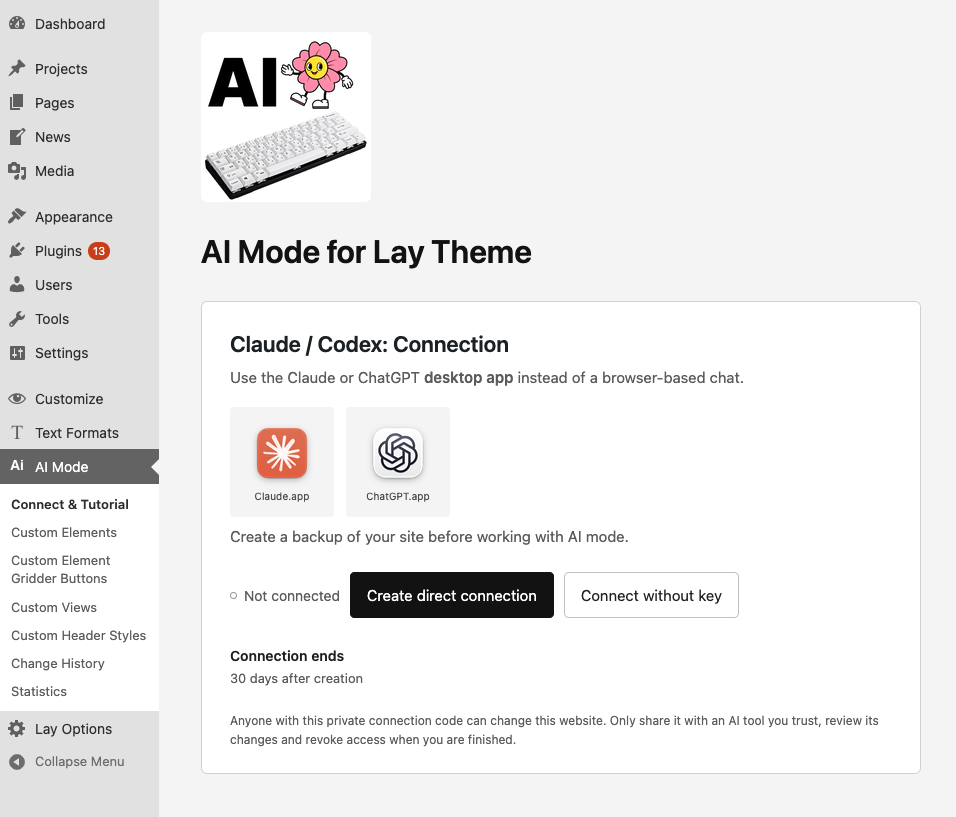
You will now see the secret key and another button:
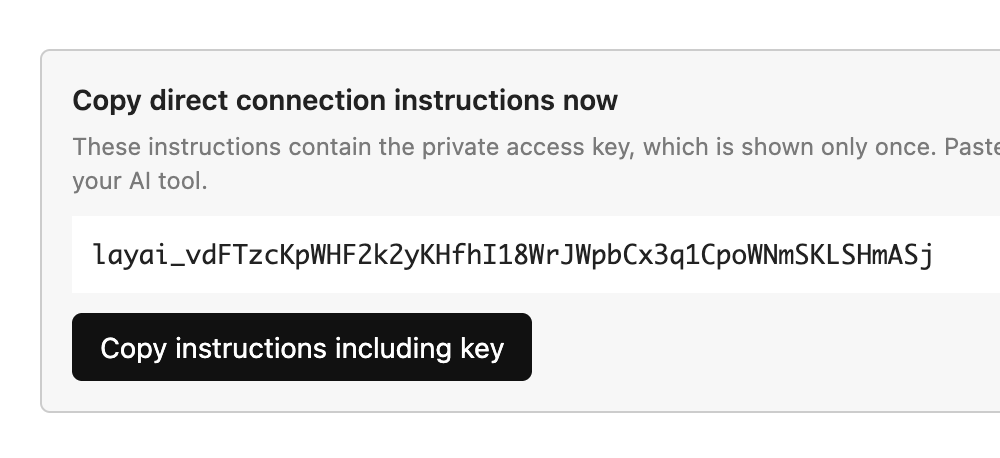
Click "Copy instructions including key".
Paste this into Claude/Codex.
Your Ai app will connect to Lay and see everything it can do now!
If you don't want to put the secret key in the chat, you can also use the "Connect without key" button.
The secret key can always be revoked and expires automatically after 30 days.
Explore what it can do
Once connected, you can ask your Ai:
What can you do now with Lay Theme based on this connection?
By asking your Claude / Codex, you can explore all the capabilities, even the ones that are not yet part of this tutorial.
Custom Fields
Remember how you built a layout in the Gridder.
And your client moved around everything and messed it up?
Well, those days are over.
Let's say we got this layout (just a simple example):
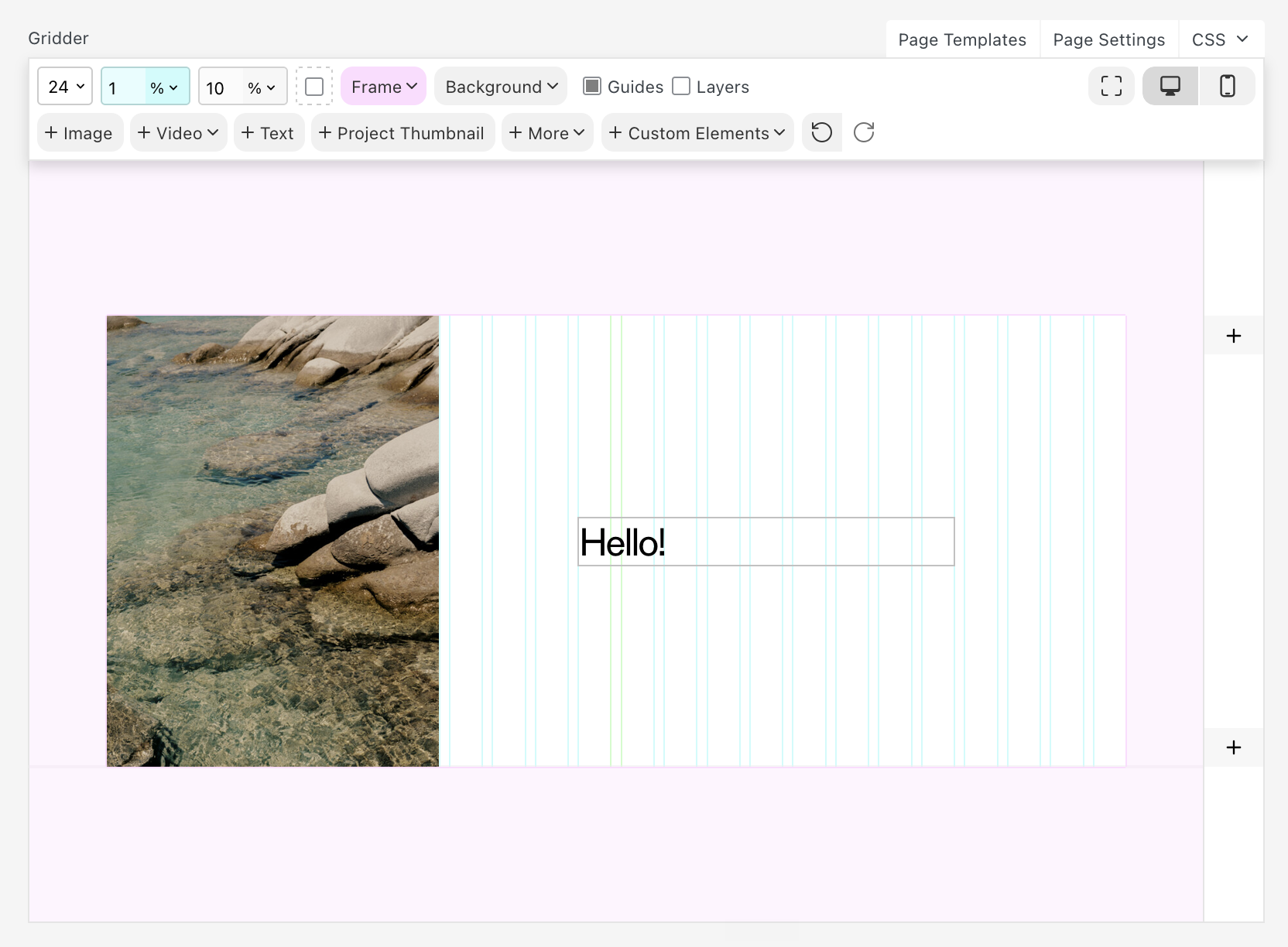
Now tell the Ai:
For this page, hide the Gridder and create custom fields for the content of the Gridder.
Before it really does it, it will ask: "Should I do the changes?"
Say yes and you can even tell it: Don't ask me anymore, just always apply the changes.
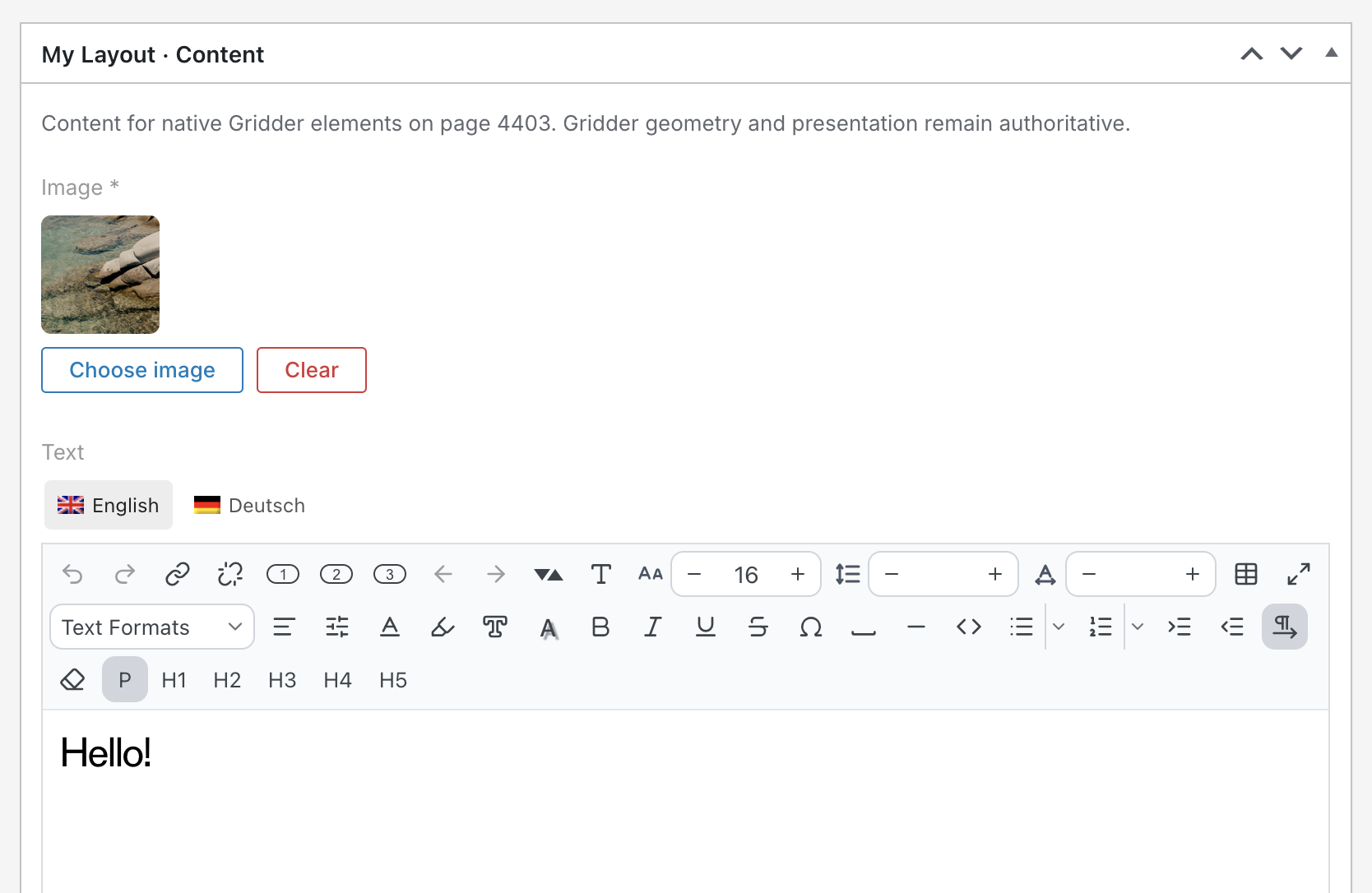
The Ai created these fields: An image field and a WYSIWYG Texteditor.
The content of your layout is now tied to those fields instead of the Gridder.
The custom fields available are Textarea, Textinput, WYSIWYG Texteditor, Repeater, Gallery, Date, Number, Checkboxes, Radioboxes and many more.
Content migration
In your admin panel you usually create pages and project posts manually.
Imagine you need to rebuild a site.
The existing old site has 100 projects.
Instead of re-creating them manually, you can tell your Ai:
Layout & Page Creation
You can even tell it to build layouts based on existing layouts you did:
But it is advisable to first do a test run with just one or two pages before telling your AI to do a hundred.
This tutorial will get more content over time.