Buttons
Lay Theme has its own Button Manager with three reusable button styles — Button 1, 2 and 3 — that you can drop anywhere on your site: inside text elements, as menu items, or as link buttons. Each style is fully configurable across multiple tabs and ships with ready-made presets.
Button Manager
Open the WP admin sidebar and click Lay Options → Buttons:

The Button Manager lives under Lay Options in the admin sidebar
Each of the three buttons has its own card with a live preview on the right and a tabbed editor on the left. The card is split into five tabs:
Style
The resting state of the button — what it looks like when nobody is hovering, clicking or on the current page.
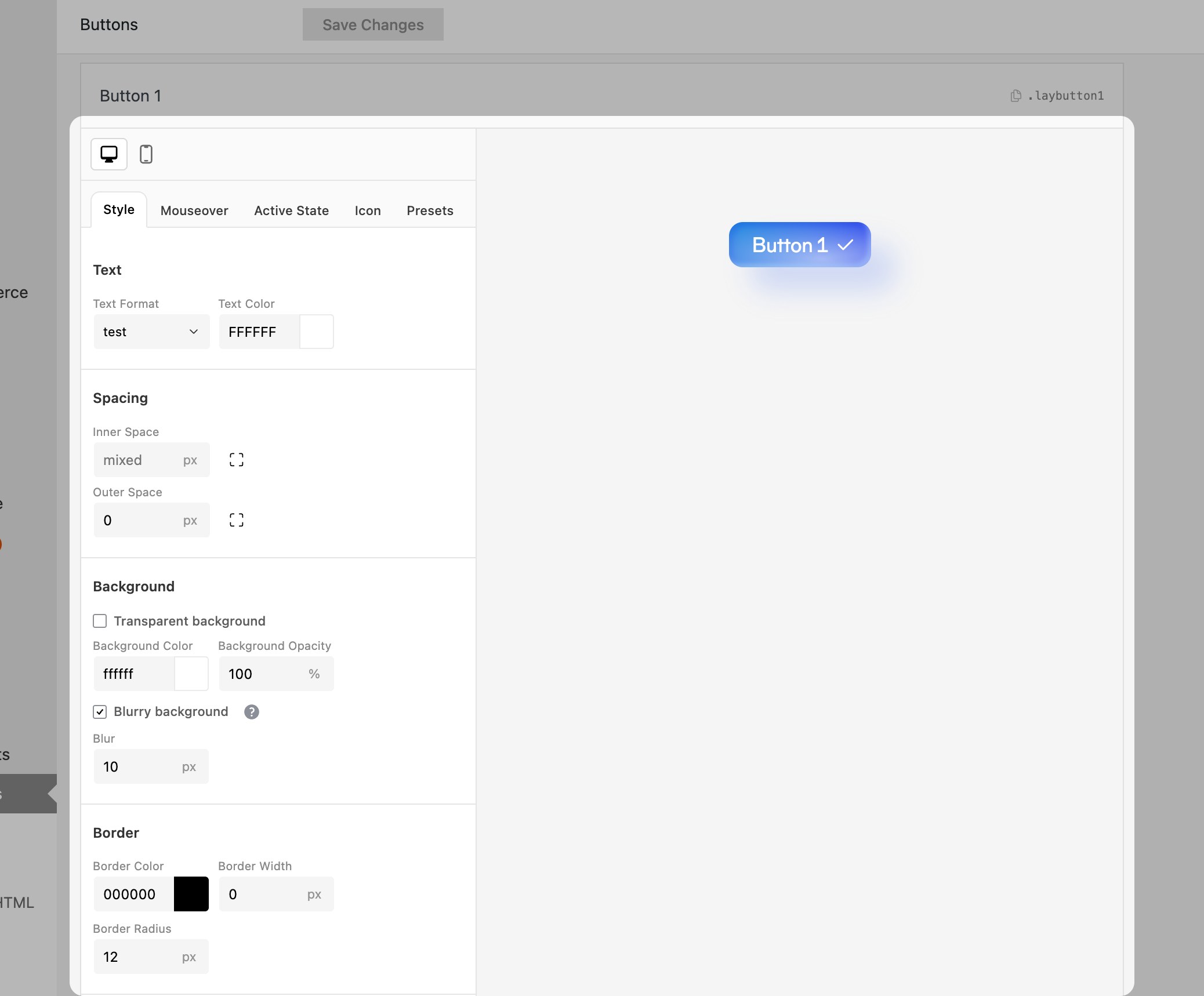
The Style tab: text, spacing, background, border and the Force Styles toggle
- Text — pick a Text Format (one of the formats from Lay Options → Text Formats) and a Text Color.
- Spacing — Inner Space (padding inside the button) and Outer Space (margin around it). Both can be set per side using the little frame icon.
- Background — toggle Transparent background or set a Background Color + Background Opacity. The Blurry background checkbox adds a frosted-glass backdrop blur (Blur in px).
- Border — Border Color, Border Width and Border Radius.
- Force Styles — overrides any styles inherited from the parent text element so the button looks the same wherever it's placed.
Mouseover
The look the button takes on while the cursor is over it. Mouseover is a focused subset of Style — only the fields you typically change on hover.

Mouseover — toggle on, optionally animate, then override Text/Background/Border
- Enable mouseover — turns the whole tab on/off. With it off, the button keeps its Style values when hovered.
- Animate — fade between Style and Mouseover values instead of snapping.
- Text Color, Background (transparent toggle, color, opacity), Border (color and width) — only the visual properties that make sense to change on hover. Text Format, Spacing and Border Radius stay on whatever Style is using.
Active State
Active State is mainly for menu buttons. In the Customizer, set a menu's Menu Style to button and choose Button 1, 2 or 3. When a visitor is on a page that matches one of the menu links, that menu link uses the button's Active State styling.

Active State is the style of the current menu link when Menu Style is set to "button"
The tab has the same field set as Mouseover: Enable, Animate, Text Color, Background and Border. Use it when the current page should be visibly marked in the menu, for example by changing the button background or border color.
Icon
Adds a small built-in icon next to the button text. Icons are drawn at the resolution you set, so they stay sharp at any size.

Icon tab — pick one of the built-in icons, choose left/right position and tweak size, gap, stroke width and color
- Enable icon — master on/off for the icon.
- Icon picker — a small grid of built-in icons (arrows, chevron, plus, checkmark, download, external link, mail, cart, play). Pick one to show it on the button.
- Position — Left or Right of the button text.
- Size — icon size in px.
- Gap — space between the icon and the text.
- Stroke Width — line thickness for the icons (they're vector strokes, not filled shapes).
- Color — Same as text keeps the icon synced with the Text Color, or pick Custom to set an independent color.
Presets
The fastest way to a finished button. Pick one of the bundled looks — None, Cloudy Blue, Glass, Neumorphic, Sunset, Hard Edge, Mint Pop, Soft Outline, Ink, Paper, Chrome, Neon Glow, Clay, Champagne, Pressed Inset, Marker, Mono Pill — and the Style/Mouseover/Active fields are filled in for you.

Presets tab — preset grid on top, then Colors, Shadow and Scaling sections to fine-tune the active preset
Below the preset grid sit three sections you can use to tweak the active preset without leaving it:
- Colors — Gradient top, Gradient bottom and Outer shadow color, so you can recolor a preset (e.g. swap Cloudy Blue for a warm yellow) without redoing it from scratch.
- Shadow — Strength, Distance and Angle sliders to dial the drop shadow up or down.
- Scaling — Hover scale and Press scale (with a Duration in ms) for the subtle grow/shrink-on-interact effect some presets use.
Picking None empties the preset; you keep whatever you had configured manually in Style.
Apply a button to text
Inside a Gridder text element you can turn any selection into a button in two ways:
Text Editor
Select the text and click Button Style 1, 2 or 3 in the text editor toolbar — three small circle icons with the numbers 1, 2, 3 just after the link icons. The selected text becomes a styled button without needing a link.

The three Button Style icons sit in the text editor toolbar of the Add Text modal, right after the link buttons
From the link modal
Select text, click the link icon and the Edit Link dialog opens. On the right you'll find a Button Style group with the same three circle icons:

The Edit Link dialog — paste a URL and pick one of the three button styles in the top right
The dialog also lets you open the link in a new tab, mark it nofollow, attach a hover image (Imagehover Addon) or pick a product / page / project from the search list to link to. Saving applies the chosen button style to the linked text.
Menu items as buttons
Menu items can use the same Button 1/2/3 styles. Go to Customize → Menu Style → Primary Menu:

Set Menu Style to "button" and pick which Button (1, 2 or 3) to use
Menu Style has three options:
- normal — plain text menu items (default).
- pill — a built-in rounded pill look configured in the same Customize section.
- button — use one of the three styles from the Button Manager. When you pick button, the Button Style dropdown lets you choose Button 1, 2 or 3.
The same Menu Style + Button Style pair exists under Customize → Mobile (Smartphone) → Mobile Menu, so you can use a different Button for the mobile menu — for example a tighter Button 3 for narrow phone widths.
Compared to "Links in Texts"
The Button Manager covers anything that should look like a button. For plain inline links inside body copy (underlined or recolored text), use Lay Options → Links in Texts instead. There you can control the normal and mouseover appearance of regular <a> tags without turning them into buttons. See Lay Options → Links in Texts.