Customizer
The Customizer is where you style your website and preview the changes live before publishing them.
Open the Customizer
Open it from the left WordPress menu via Customize.

Click Customize in the WordPress admin menu
The settings are on the left, the website preview is on the right. Use the desktop, tablet and phone icons at the bottom to preview responsive settings, then click Publish when you want to save the changes.

The Customizer overview with the main Lay Theme sections
Favicon
Set the small icon that appears in browser tabs, bookmarks and some mobile browser interfaces. Use a simple square image so it stays recognizable at very small sizes.
Menu Style
Menu Style controls your desktop navigation. Use Primary Menu for the regular menu appearance, Menu Point Mouseover and Menu Point Active for hover and current-page states, Menu Bar for the area behind the menu and Submenus for dropdown styling. See the Menus documentation for examples of normal, pill and button menu styles.
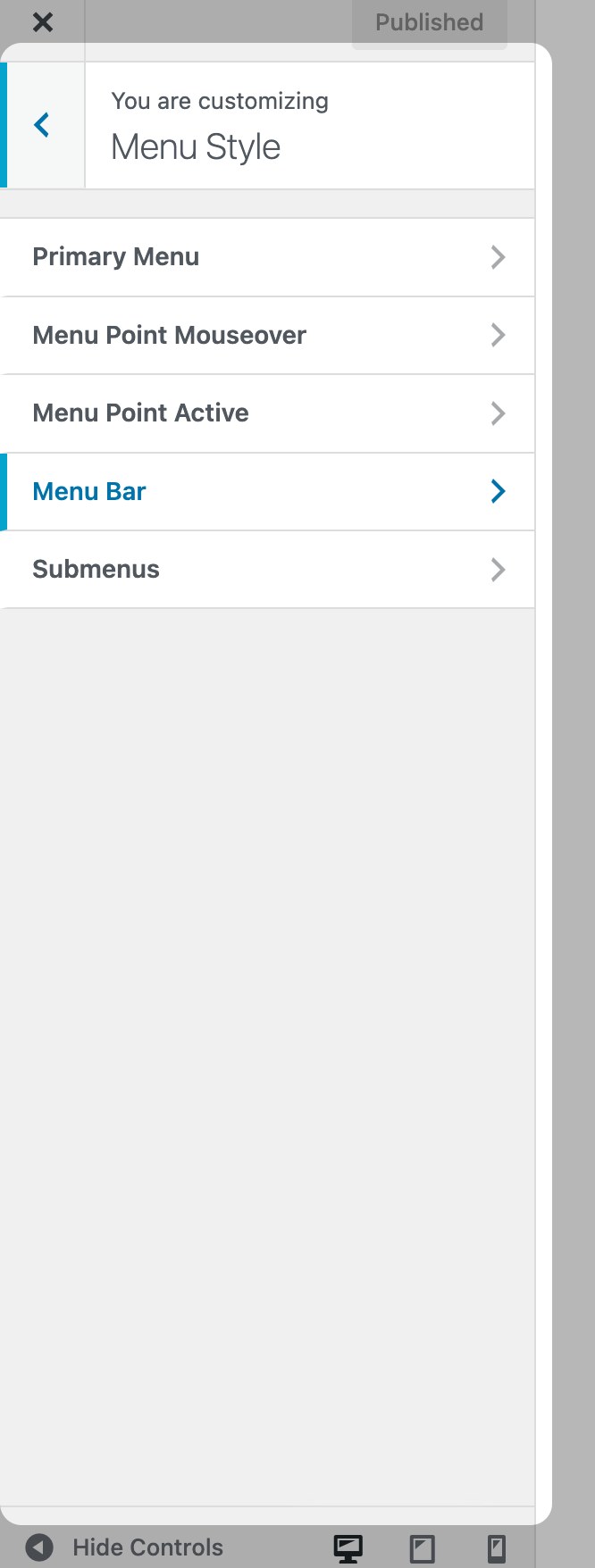
Menu Style contains the desktop menu, hover, active, menu bar and submenu settings
Site Title
Site Title styles the text-based logo/title of the website. You can style the normal and mouseover states and the Site Tagline, which is the small text underneath the title when you use one. You can also apply a reusable Textformat here; see Using Textformats in the Customizer.
Project Thumbnails
Project Thumbnails controls how project thumbnails look on the frontend. This includes the thumbnail image style, category and tag filters, project title, mouseover state, gradient overlay, project tags and project description. The elements themselves are explained in Project Thumbnail and Thumbnail Grid.

Project Thumbnails contains the shared styling for project thumbnails, filters, titles, tags and descriptions
Mobile (Smartphone)
Mobile (Smartphone) is for phone-specific navigation and spacing. Use it to style the mobile menu, menu icons, mobile menu bar, mobile site title, mobile spaces and mobile background. If you want to build separate phone layouts in the Gridder, see Custom Phone Layouts.

Mobile settings are separated from the desktop menu and desktop spacing settings
Links in Texts
The link style settings have moved. The Links in Texts section in the Customizer now only contains a button that opens Lay Options → Links in Texts. Edit the default and mouseover appearance there; see Lay Options → Links in Texts.
Background
Background sets the general website background. Page, row and element backgrounds can still override it in specific layouts, so use this as the site-wide base. Row-specific background color, images, videos and WebGL slideshows are covered in Gridder Rows → Row Backgrounds.
Search
Search styles the search overlay: input, colors, result appearance, autosuggest, close icon and thumbnail grid options. The indexing settings are in Lay Options → Search; the Customizer controls how the overlay looks. See the Search documentation for the detailed settings.
Front Page
Choose which page should be used as the website front page. This is useful when you build a custom page in the Gridder and want visitors to see it at the root URL of the website. See Setting the Frontpage for the full workflow.
Cursor
Cursor controls custom cursor styles for the website. Use it when the site should use a custom cursor image or different cursor behavior for links and interactive elements.
Project Arrows
Project Arrows styles navigation arrows between projects when project navigation is used. Depending on the current preview and enabled features, this section may only appear when it is relevant. See Navigation between Projects for the project navigation setup.
WooCommerce
When WooCommerce is active, the WooCommerce section appears in the Customizer. It contains shop spacing, mobile shop spacing, single product styling, product element order, store notice, cart, checkout, product thumbnails, product filters, buttons and the order received page. See Shop Setup / WooCommerce for the shop setup and Shop / WooCommerce Elements for Gridder shop elements.

WooCommerce settings appear when the WooCommerce plugin is active
CSS
CSS gives you Customizer fields for CSS snippets. Use the general CSS field for all devices, Desktop CSS for desktop-only rules and Mobile CSS for phone-specific rules. For larger styling changes, see Custom CSS & Styling.
Conditional Sections
Some Customizer sections only appear when a feature or plugin is active, or when the current preview page can use that setting. For example, WooCommerce settings require WooCommerce, intro settings require the intro feature and project navigation settings may depend on the current preview context.