Layout Modes
Most Gridder rows use the column grid. Place Freely and Auto Layout are the two layout modes you can use when a section should behave differently.
Use Place Freely for single elements that should no longer snap to the grid. Use Auto Layout for a whole row when elements should flow next to each other and be sized by width or height.
Place Freely
Right-click an element and choose "Place Freely" to position it freely in the layout, independent of the normal Gridder columns and row flow. Use it when an element should ignore the regular grid rhythm, sit in a very specific spot or overlap other content.

Use Place Freely from the element context menu
For text elements, first go to Lay Options → Gridder and enable Placefreely for Texts. The Place Freely entry will then also appear when you right-click a text element.
We recommend using Place Freely only for short text elements. Longer texts can behave unpredictably and make the layout look wrong, especially across different screen sizes. This is why Placefreely for Texts is disabled by default. If you need to position longer text differently, use a Horizontal Grid or Stack / Group elements instead.

Enable Placefreely for Texts in Lay Options → Gridder
Auto Layout
The quickest way to enable Auto Layout is to select an element in a regular row and click "Enable Auto Layout Sizing" in the Element sidebar under Layout. This converts the entire row to Auto Layout and immediately lets you set the selected element's width or height in pixels or percent, or use Fill.
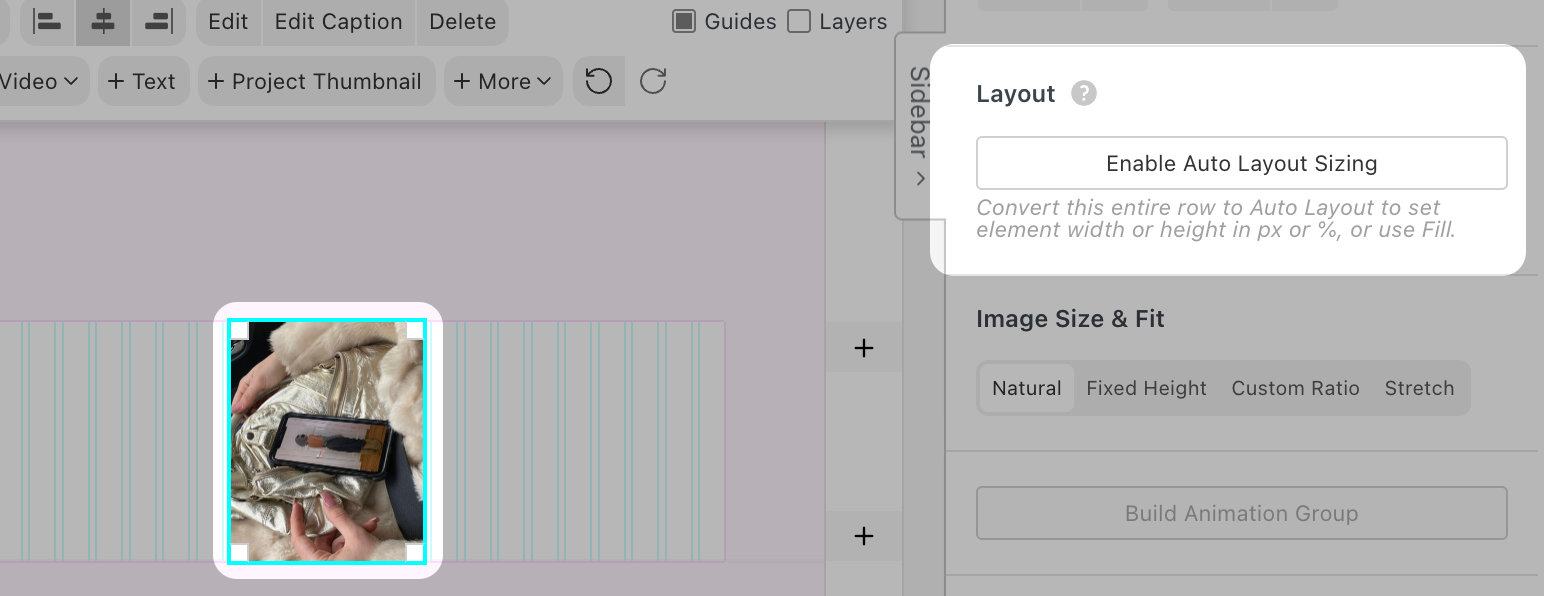
Select an element and click "Enable Auto Layout Sizing" to convert its entire row
You can also select a row and choose Auto Layout in the Row sidebar. In Auto Layout, the elements in that row are no longer arranged by the Gridder columns. They flow next to each other, can wrap to new lines, and the row can align them left, centered or right.
This is useful for layouts like a logo wall: add several logo images to one row, give them a fixed width or height, set a gap, and let them wrap naturally when the screen gets smaller.
Use Gap to set the space between the elements. Turn on Wrap when the elements should continue on a new line once there is not enough horizontal space.

Auto Layout turns a row into a flexible layout area
When you select an element inside an Auto Layout row, the Element sidebar gets an extra Size section. Choose whether you want to set the element's Width or Height, whether the value is Fixed or Fill, and whether the size is measured in percent or pixels.

Elements inside Auto Layout rows can be sized by width or height, in percent or pixels