AI Mode: WordPress Admin
Enabling AI Mode adds a group of administrator-only screens to the WordPress dashboard. They connect the AI assistant and let you review or manage the structures it creates.
The available screens appear below the AI Mode menu. Their contents depend on the Custom Elements, Custom Views and AI changes currently stored on the website.
Connect & Tutorial
This is the AI Mode start screen. It links to the full tutorial and manages the connection between the website and Claude or Codex.
- For a local WordPress website, it provides the Browser Bridge and copies the Browser Bridge instructions.
- For an online website, it creates, replaces or revokes a direct connection. The private key is shown only once, and the connection expires after 30 days.
- Connect without key provides the Browser Bridge workflow for an online website.
Custom Elements
Custom Elements are reusable Gridder components made from structured fields, Liquid-compatible HTML, responsive CSS and optional JavaScript. You can create them manually or let Claude or Codex build them.
The manager lets you publish or return an element to draft, duplicate, delete and reorder it. Each element has settings for its name, ID, description, preview image, Gridder button location and width. The Fields tab defines its editable content; Design & Code contains HTML/Liquid, Desktop, Tablet and Phone CSS, JavaScript and a responsive preview.
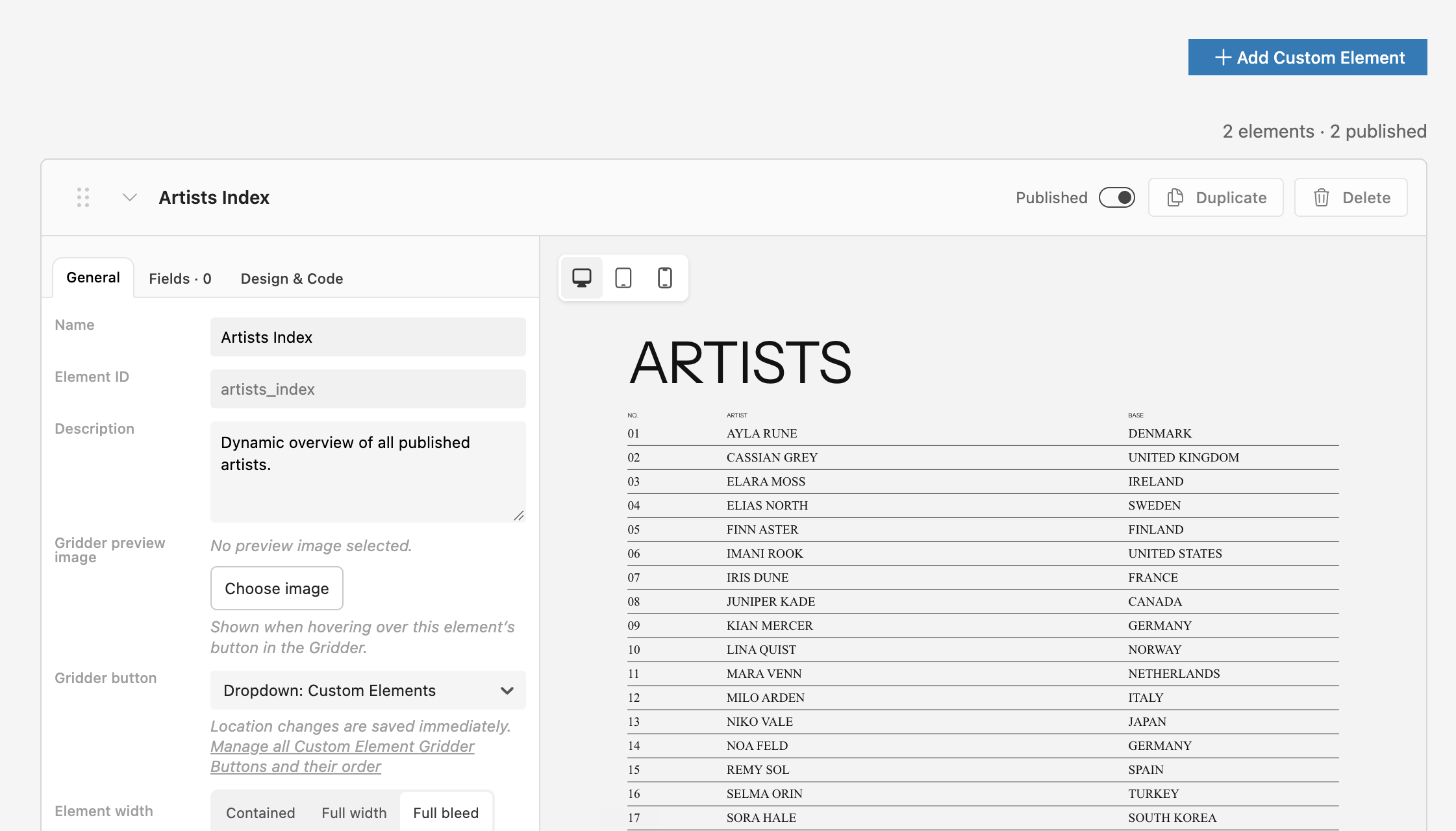
A Custom Element with its settings and live preview
Custom Element Gridder Buttons
This screen controls where published Custom Elements appear among the Gridder's add buttons. Drag an element into a custom dropdown, show it as a direct button, place it in a compatible built-in dropdown such as More or Video, or move it to Not shown in Gridder.
You can add and rename custom dropdown buttons and reorder both the buttons and the elements inside them. Reload the Gridder after changing this configuration.
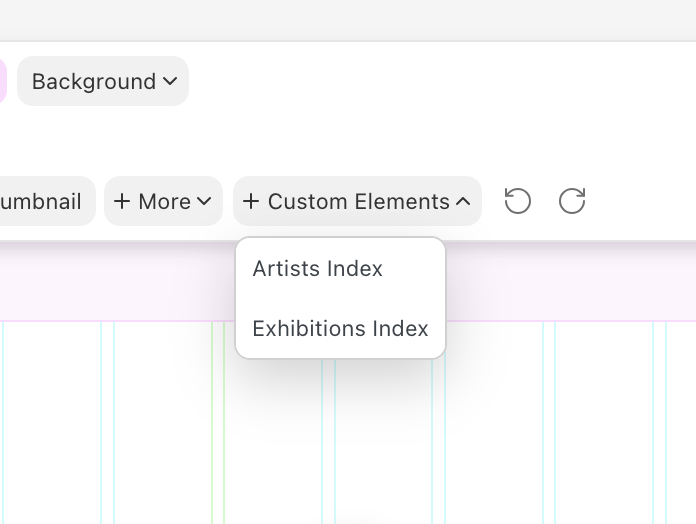
Custom Elements grouped in their own Gridder dropdown
Custom Views
Custom Views are automatic frontends created through AI Mode for a post type, an individual post, a Custom Taxonomy or an individual term. They can replace the Gridder or render before or after it. WooCommerce Products also support placements around the product summary and related products.
The screen shows every Custom View, its target, placement and publication status. Open a view to edit its HTML/Liquid, responsive CSS, JavaScript and responsive frame spacing, and to inspect the live preview.
Custom Header Styles
Custom Header Styles provide scoped responsive CSS for Lay Theme's existing Site Title, Primary Menu, Second Menu, Third Menu, Fourth Menu and Mobile Menu. They change the visual design without replacing Lay Theme's markup or menu behavior.
Enable a custom style for a target, edit its available Desktop, Tablet or Phone CSS and check the live website preview. Enabled styles replace the visual Customizer CSS for that target, so verify menu items, hover states, submenus and the open Mobile Menu after changing them.
Change History
Change History records the latest 200 plans applied through AI Mode and labels them as Applied, Undone or Failed. It provides a readable summary and date for each plan.
The newest eligible applied plan can be undone as long as the affected website data has not been edited afterwards. Content removed through AI Mode is moved to the WordPress Trash rather than permanently deleted.
Statistics
Statistics shows where every Custom Element is used. The summary reports the number of Custom Elements, content items, instances and unused elements.
Search, filter or sort the list by usage, Gridder-button visibility, content type, number of instances or name. Expanding an element shows the affected content, Desktop and Phone layouts, Custom View references and direct links to the Gridder or WordPress edit screen.